

SSD Upgrade Sydney
More speed. More storage. Less waiting.
CAA Computers upgrades desktop PCs, gaming PCs and compatible laptops with SATA SSDs, M.2 NVMe storage and larger-capacity drives. We can replace an old hard drive, add a second drive, clone a healthy system drive, transfer data or perform a clean Windows installation when that makes more sense.
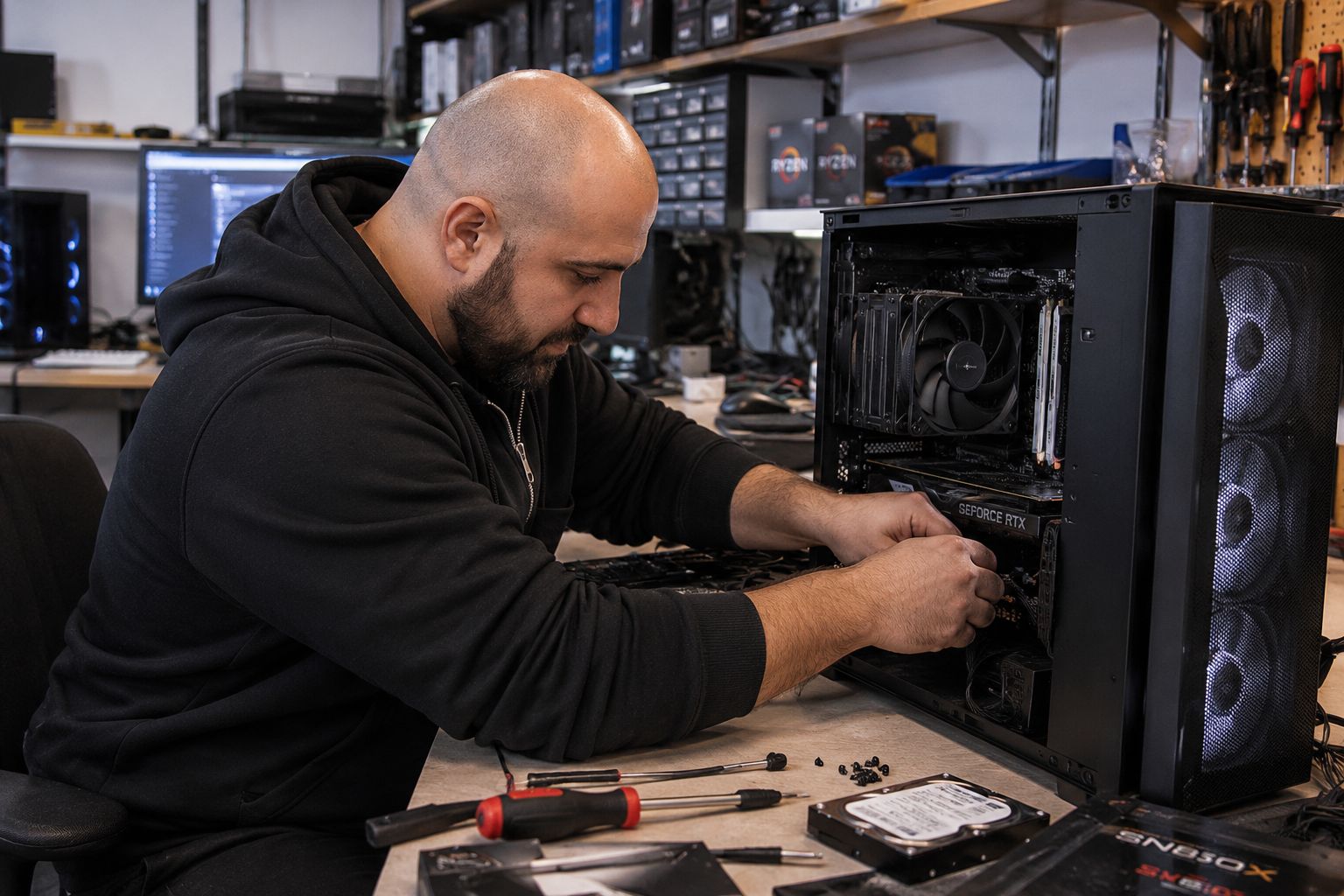
Installation, migration and maintenance options.
Parts are quoted separately. The right service depends on whether you are simply installing storage, moving Windows and data, or replacing a drive in a system that has other problems.
Single Component Installation & Testing
For one known compatible desktop SSD or NVMe installation when diagnosis is not required.
- SATA SSD or NVMe installation
- Drive detection check
- Basic testing
- SSD hardware extra
Laptop RAM / SSD / Battery Installation
For a straightforward compatible laptop SSD installation.
- Compatible SSD installation
- SATA or NVMe depending on model
- Basic drive detection check
- SSD hardware extra
SSD / HDD Clone & Migration
Clone a healthy supported source drive to a suitable replacement SSD when the existing installation is worth keeping.
- Supported system-drive cloning
- New drive must have sufficient usable capacity
- Source drive must be readable enough to clone
Data Transfer To New Drive
Move supported personal files to a replacement or additional drive without cloning the entire operating system.
- Documents and supported user files
- Useful for fresh Windows installs
- Not the same as specialist data recovery
Complete Windows / Linux Reinstall
Fresh operating-system installation with available drivers, updates and basic setup when cloning the old installation is not the best option.
- Windows 11 or supported Linux
- Available drivers
- System updates
- Windows licence not included if required
Data Backup Before Repair
Back up readable supported data before repair or storage work where the customer wants an additional copy first.
- Useful before higher-risk drive work
- Destination storage may be required
- Not specialist forensic recovery
Basic Internal PC Clean
Internal dust removal, fan and filter cleaning, case clean and basic visual inspection for desktop systems.
- Can improve airflow
- Useful if the computer used to run better before
- Cleaning does not increase SSD speed beyond the drive itself
CPU Cooler Service & Thermal Paste
CPU cooler cleaning, fresh thermal compound and basic temperature testing for suitable desktop systems.
- For high CPU temperatures
- Useful on aging systems
- Separate from SSD installation
Deep Clean & Strip-Down Service
For heavily dust-affected desktop systems requiring more extensive cleaning and partial disassembly.
- Fans, filters and heatsinks cleaned
- Partial strip-down where required
- Not a full hardware rebuild
System Tune-Up & Software Cleanup
For systems that feel slow because of startup software, clutter or Windows issues rather than storage hardware alone.
- Startup software review
- Basic Windows cleanup
- Update checks
- Performance review
Maintenance vs SSD Upgrade
If the computer used to run well and has simply become cluttered, hot or dusty, maintenance may be worth considering. If it still uses a mechanical hard drive or is genuinely short on storage, an SSD upgrade is usually the more meaningful hardware fix.
- SSD upgrades improve storage speed and capacity
- Cleaning can restore lost airflow
- Software cleanup can reduce background load
- Maintenance cannot turn a slow hard drive into SSD storage
Storage upgrades improve speed, capacity or both.
Hard Drive To SSD
Replacing a mechanical hard drive with solid-state storage can dramatically improve boot times, application loading and everyday responsiveness.
NVMe Upgrade
Install a compatible M.2 NVMe SSD for fast storage, large file transfers, gaming, editing and modern workstation workloads.
More Storage Capacity
Add space for games, video, photos, project files, applications and other data without replacing the entire computer.
Faster Game Loading
Move games from a hard drive to SSD storage to improve loading and asset access. An SSD normally does not create the same FPS increase as a CPU or GPU upgrade.
Workstation Storage
Fast NVMe storage can benefit editing, photography, CAD, large project files, cache files and professional workflows.
Secondary Storage
Keep the existing healthy drive and add another SSD where the computer has the required slot, bay, connection and power.
The fastest SSD is useless if the computer cannot support it properly.
We identify whether the system supports NVMe, SATA M.2, 2.5-inch SATA or multiple storage types.
The system needs physical space, the correct mounting point and compatible cables where required.
Motherboard support affects whether a PCIe 3.0, 4.0 or newer NVMe drive can run at its expected speed.
We consider whether cloning, data transfer, a clean installation or a secondary-drive setup makes the most sense.
A failing source drive should not be treated like a healthy drive being replaced only for speed or capacity.
High-performance NVMe drives may benefit from a motherboard heatsink and suitable case airflow.
We can check whether you need SATA, NVMe or another storage option.
For desktops, send the motherboard model if possible. For laptops, send the exact laptop model. Tell us your current storage capacity and how much space you want.
If the old drive contains Windows and files you want to keep, tell us whether your priority is cloning the whole drive, transferring personal data or starting with a clean operating-system installation.
Choose storage based on the computer and workload.
SATA SSD Upgrade
A strong option for older desktops and laptops that do not support NVMe or simply need a reliable replacement for a mechanical hard drive.
M.2 NVMe SSD Upgrade
High-speed cable-free storage for systems with a compatible M.2 PCIe slot.
Hard Drive Replacement
Replace an aging or slow mechanical hard drive with compatible solid-state storage.
Additional SSD
Add another SSD without removing a healthy existing drive when a free slot, bay and connection are available.
Gaming Storage Upgrade
Add capacity for modern games, DLC, recordings and mods while reducing loading delays compared with mechanical storage.
Creator / Work Storage
Build a sensible storage layout for project files, source footage, caches, exports and other large professional datasets.
Local SSD and storage upgrades from Kingsgrove.
CAA Computers is located at 4/328 Kingsgrove Road, Kingsgrove NSW 2208 and provides SSD upgrade services for compatible desktops, gaming PCs and laptops from Kingsgrove, Bankstown and surrounding Sydney suburbs.
The new SSD is only half the decision.
A healthy Windows installation may be worth cloning to the new SSD. A cluttered or unstable installation may be better rebuilt cleanly. If the current drive is healthy and still useful, the best answer may simply be adding a second SSD.
CAA Computers can help choose between a straightforward drive installation, cloning, data transfer and a complete Windows reinstall before the work begins.
Detailed information about SSD upgrades in Sydney.
The visible page stays focused on choosing and booking the right storage upgrade. These accordions carry the deeper storage and long-tail keyword coverage.
SSD Upgrade Sydney – Desktop, Gaming PC And Laptop Storage Upgrades
Customers searching for SSD upgrade Sydney, SSD installation Sydney, NVMe upgrade, hard drive to SSD upgrade, computer storage upgrade, desktop SSD upgrade or laptop SSD upgrade are usually trying to improve responsiveness, increase storage capacity or replace an older drive.
CAA Computers provides SSD upgrades for compatible desktops, gaming PCs, work computers and laptops from our Kingsgrove workshop. The existing storage interface, available M.2 slots, SATA connections, drive bays and operating-system setup are checked before a replacement drive is selected.
Hard Drive To SSD Upgrade – Is It Worth It?
A hard drive to SSD upgrade is one of the most noticeable upgrades for a computer that still uses a mechanical system drive. Solid-state storage can greatly reduce startup time, application loading and general waiting compared with a traditional spinning hard drive.
The upgrade is particularly worthwhile when the processor and memory are still adequate but everyday use feels slow because Windows and applications are waiting on the hard drive.
SATA SSD vs NVMe SSD Upgrade
A 2.5-inch SATA SSD connects through SATA data and power. An NVMe SSD generally installs directly into an M.2 slot and communicates over PCI Express.
NVMe drives can achieve much higher transfer speeds, but not every computer supports NVMe. An M.2 slot can also have different capabilities depending on the motherboard or laptop. CAA Computers checks the exact storage interface before recommending the drive.
PCIe 3.0, PCIe 4.0 And Newer NVMe SSDs
NVMe SSDs can use different PCIe generations. A newer drive may work in an older compatible slot, but its maximum speed can be limited by the motherboard and CPU platform.
The fastest advertised SSD is not always the best value. Everyday office systems may benefit more from capacity and reliability, while editing, large-file workloads and high-end workstations may justify faster NVMe storage.
SSD Cloning vs Clean Windows Installation
SSD cloning can move a healthy existing system installation to a new drive without reinstalling everything. CAA Computers charges $100 for supported SSD/HDD clone and migration work.
A clean installation is often better when the old Windows installation is unstable, corrupted, heavily cluttered or affected by software problems. A complete Windows or supported Linux installation is $159. Windows licensing is additional if a new licence is required.
Data Transfer To A New SSD
Data transfer is different from cloning. Instead of copying the full operating system and installed applications, supported personal files are moved to the new drive or new Windows installation.
CAA Computers charges $100 for supported data transfer to a new drive. If the original drive is failing badly, specialist recovery may be required instead of ordinary file transfer.
Will An SSD Upgrade Increase Gaming FPS?
An SSD mainly improves loading, file access and storage responsiveness. Moving a game from a mechanical hard drive to SSD storage can reduce loading delays and improve asset access in supported games.
An SSD does not normally produce the same frame-rate improvement as a faster graphics card or processor. Customers specifically chasing higher FPS should also consider the gaming PC upgrade service or GPU upgrade service.
SSD Upgrade Near Me – Kingsgrove Sydney
Searches such as SSD upgrade near me, NVMe installation near me, hard drive replacement near me and laptop SSD upgrade Sydney usually come from customers who want a local workshop that can check the actual machine before parts are purchased.
CAA Computers operates from 4/328 Kingsgrove Road, Kingsgrove NSW 2208 and provides SSD and storage upgrades for customers from Kingsgrove, Bankstown, Beverly Hills, Bexley, Hurstville, Penshurst, Campsie, Revesby and surrounding Sydney suburbs.
SSD Upgrade FAQ
Can I upgrade from a hard drive to an SSD?
Many desktops and laptops can be upgraded from a mechanical hard drive to a compatible SATA or NVMe SSD. The actual connection and physical space need to be checked first.
Can you clone my current drive?
Yes, supported cloning may be possible when the source drive is healthy enough to read and the replacement drive has sufficient usable capacity.
Can I add another SSD without removing my current drive?
Possibly. The system must have an available M.2 slot, SATA connection or drive bay and any required power/cabling.
How much is SSD installation?
Desktop single-component installation and testing is $150. A straightforward compatible laptop SSD installation is $100. The SSD itself is additional.
How much is a Windows reinstall?
A complete Windows or supported Linux installation is $159. Windows licensing is extra if required.
Tell us the computer model, current drive and how much storage you need.
We can help work out whether the right answer is SATA, NVMe, an additional SSD, hard-drive replacement, cloning, data transfer or a clean Windows installation.